

Redirects
You can take advantage of the portal redirection every time your guest connects to your WiFi network. How that works is: your guest sees the captive portal, answers the campaign and clicks on the connect button. Immediately the guest will be redirected to a URL, this could be an External url or an internal Aiwifi Links Page customized by you!
Some Android devices will automatically close the window when redirected. This is out of our control and any other vendor's control as Android decided this would be the customer journey for captive portals.
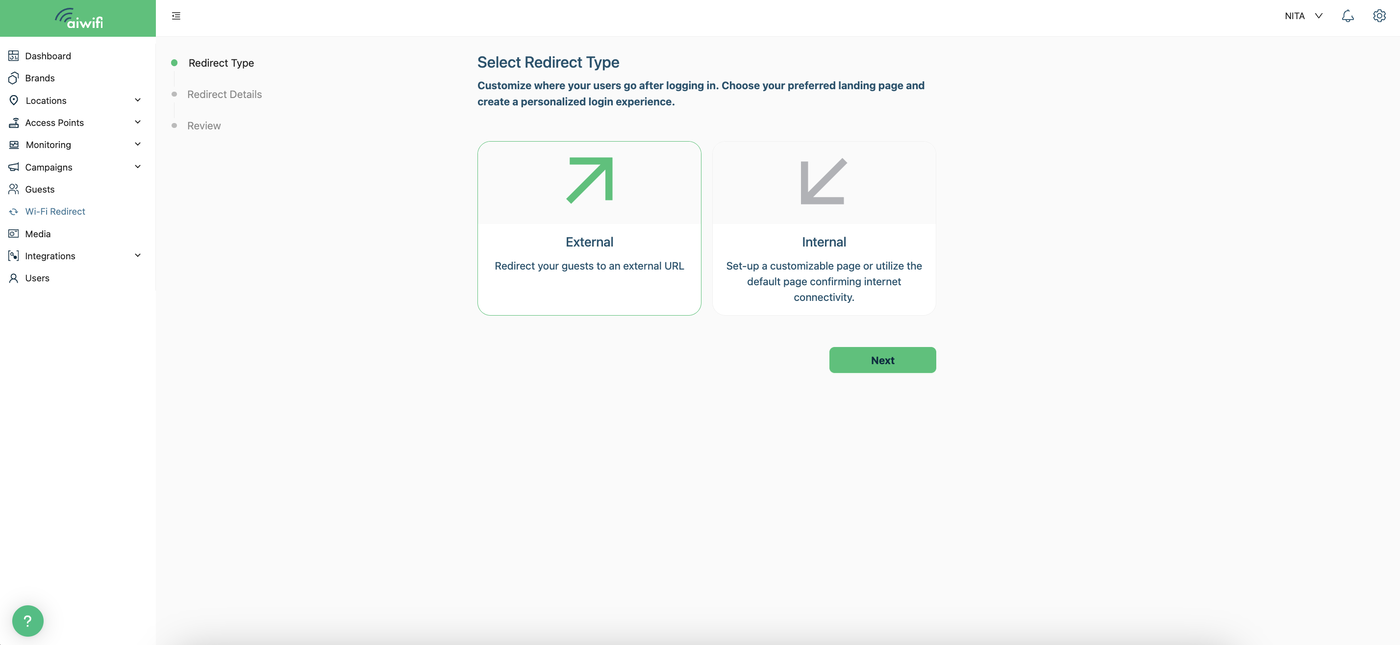
There are 3 options for your redirect setup:
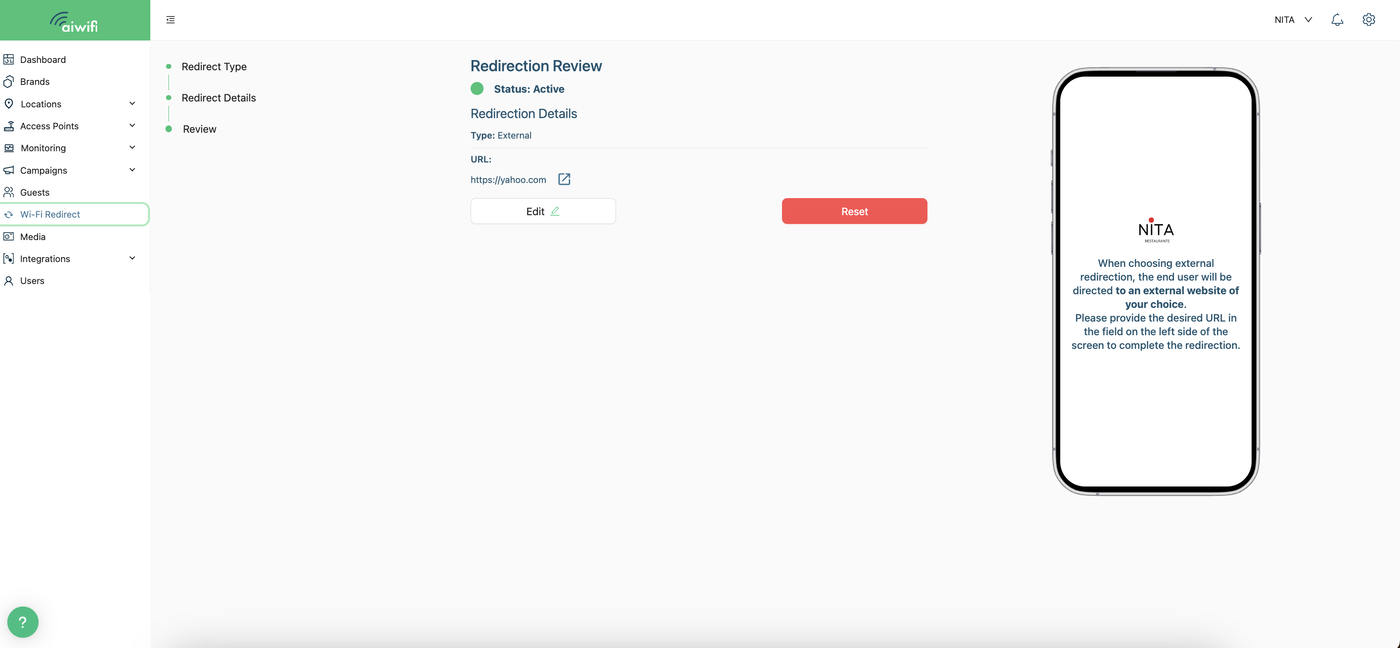
1. External URL
When choosing external redirection, the end user will be directed to an external website of your choice. Please provide the desired URL in the field of the left side of the screen to complete the redirection.
Setup any URL you want. This could be your website or an external form or landing page.
2. Internal Redirect
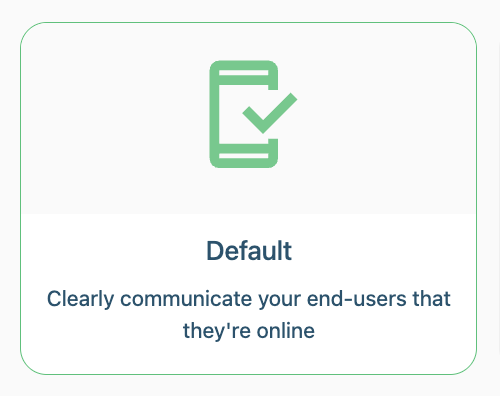
2.a) Default Internal Redirect
Set-up a customizable page or utilize the default confirming internet connectivity.
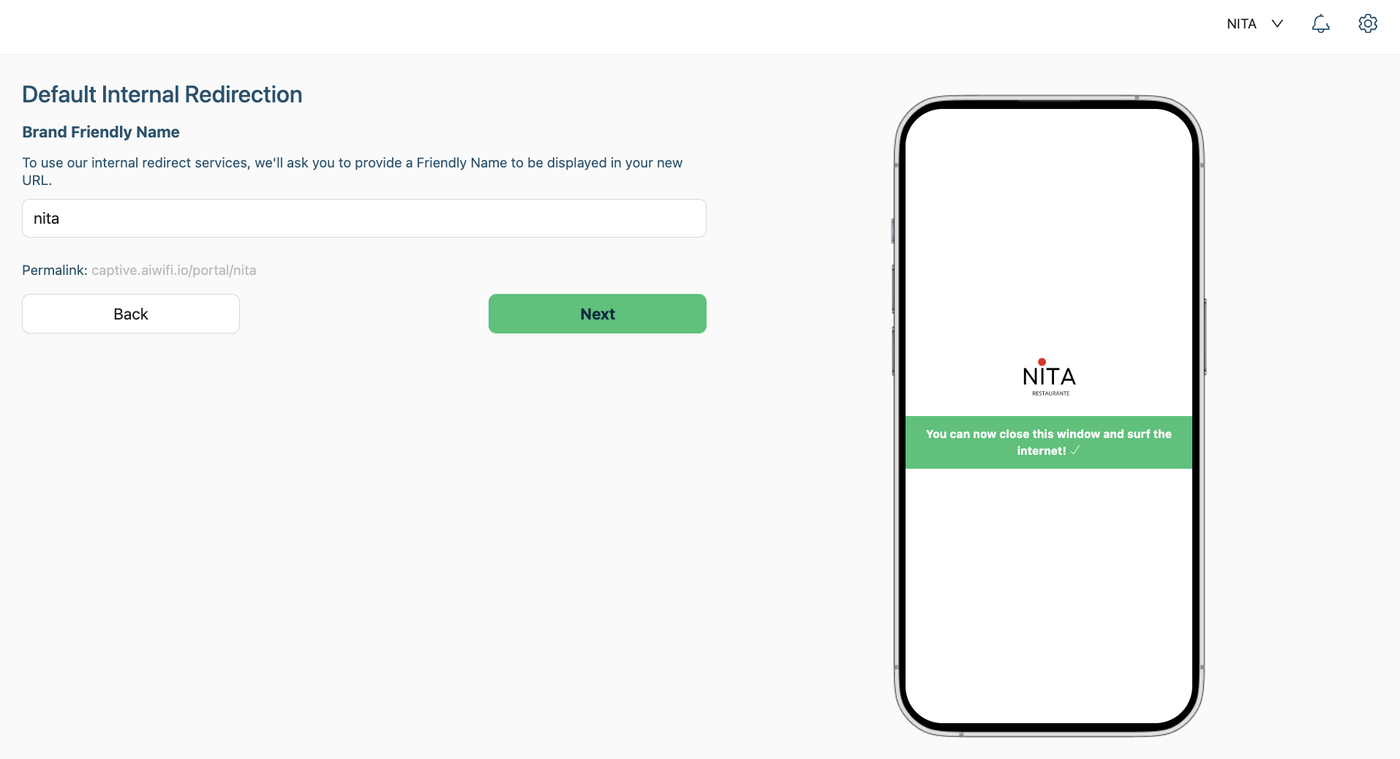
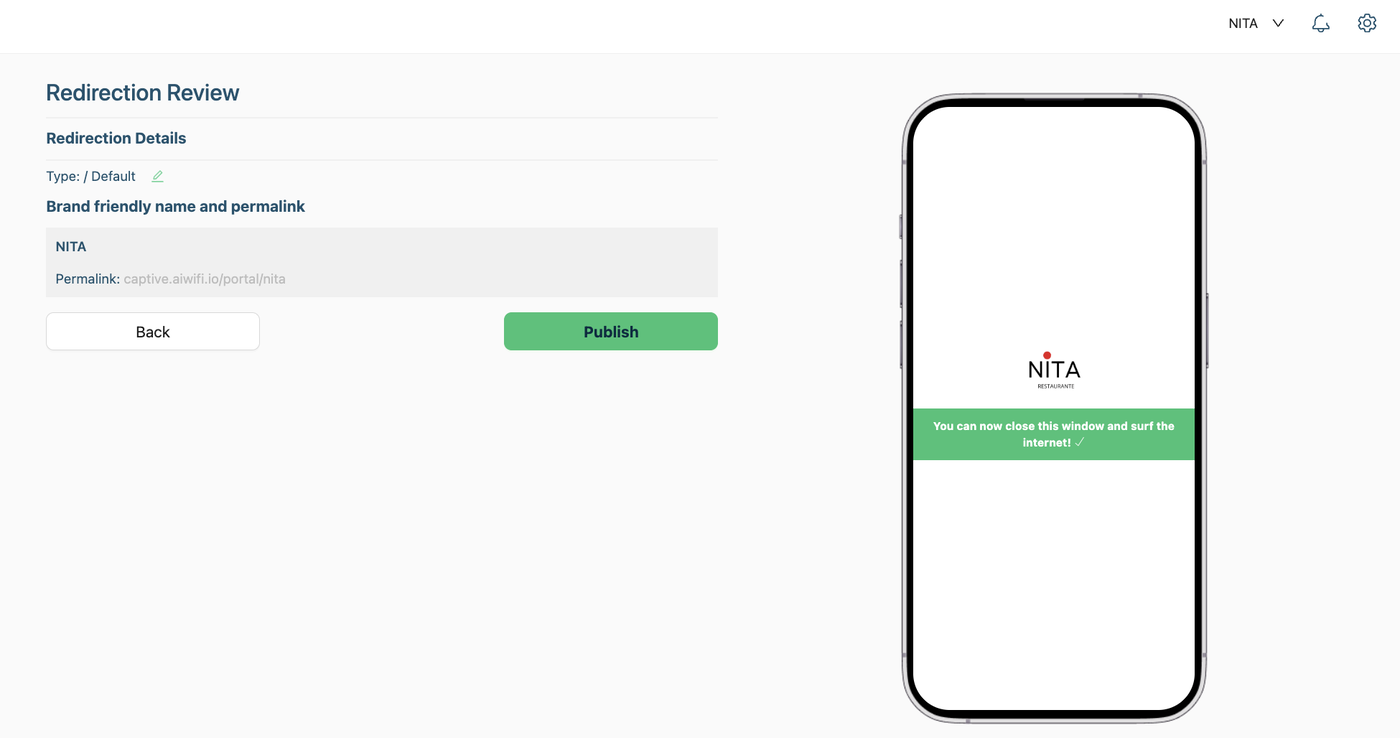
Default Internal Redirect.- Clearly communicate your end-users that they’re online.
Brand Friendly Name.- To use our internal redirect services, we will ask you to provide a friendly name to be displayed in your new URL.
Redirection Review: Once you review the redirection details and set the permalink you can press the Publish button.
2.b) Custom Internal Redirect.- Set-up a customizable page, include customs links and add your social media.
This is everyone's favorite!
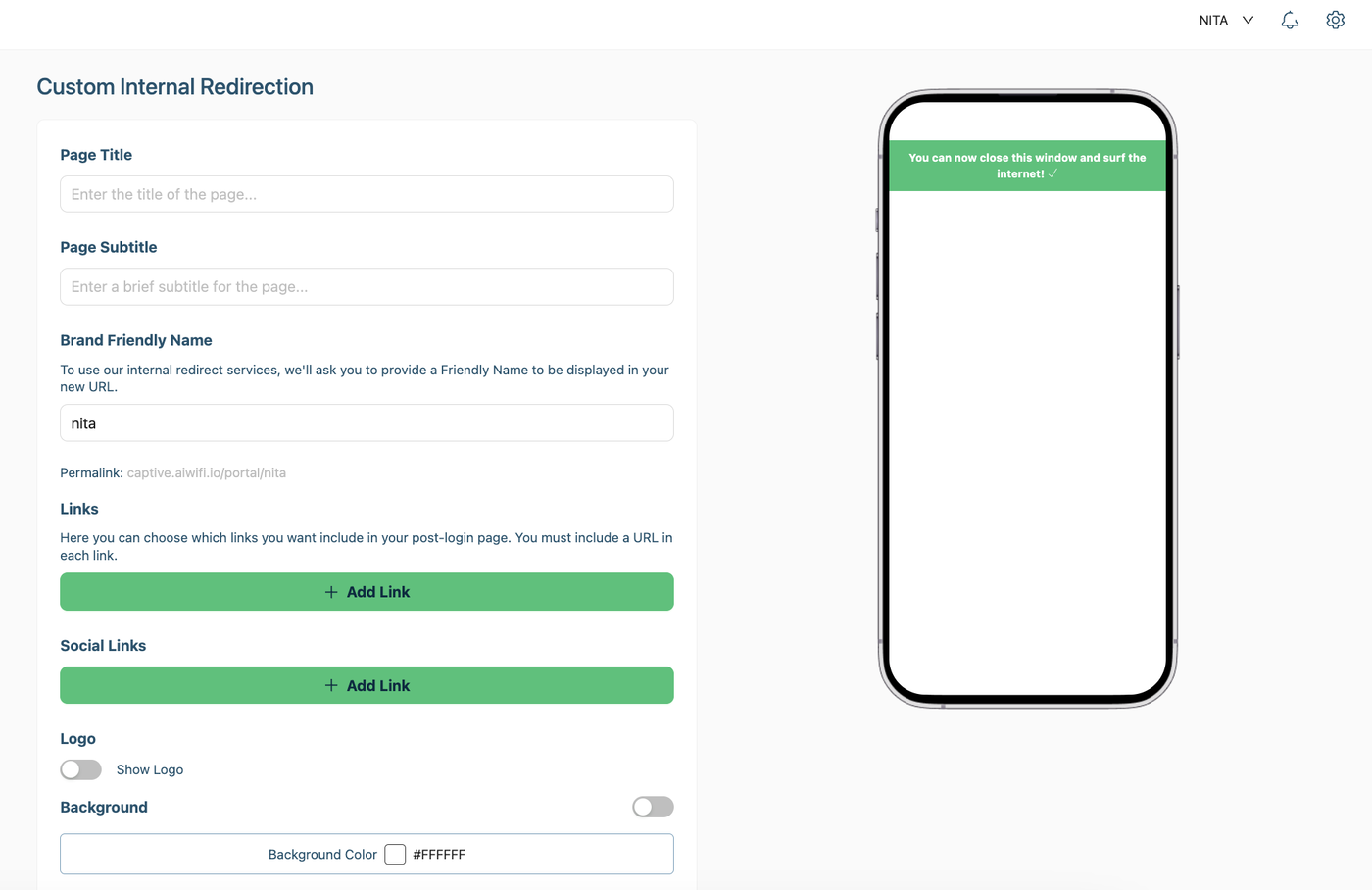
Customize how your redirect landing page looks and include links and call to actions (CTA) to guide your guest into links of interest for your user. Also, you'll be able to setup your social networks!
Our recommendations:
1. Setup links of interest that would be helpful inside the venue, for example:
- Restaurants: Digital menu, locations, offers, new dishes.
- Shopping malls: Directory, discounts, events
- Retail: Loyalty program benefits, coupons, offers, new arrivals.
And so on.