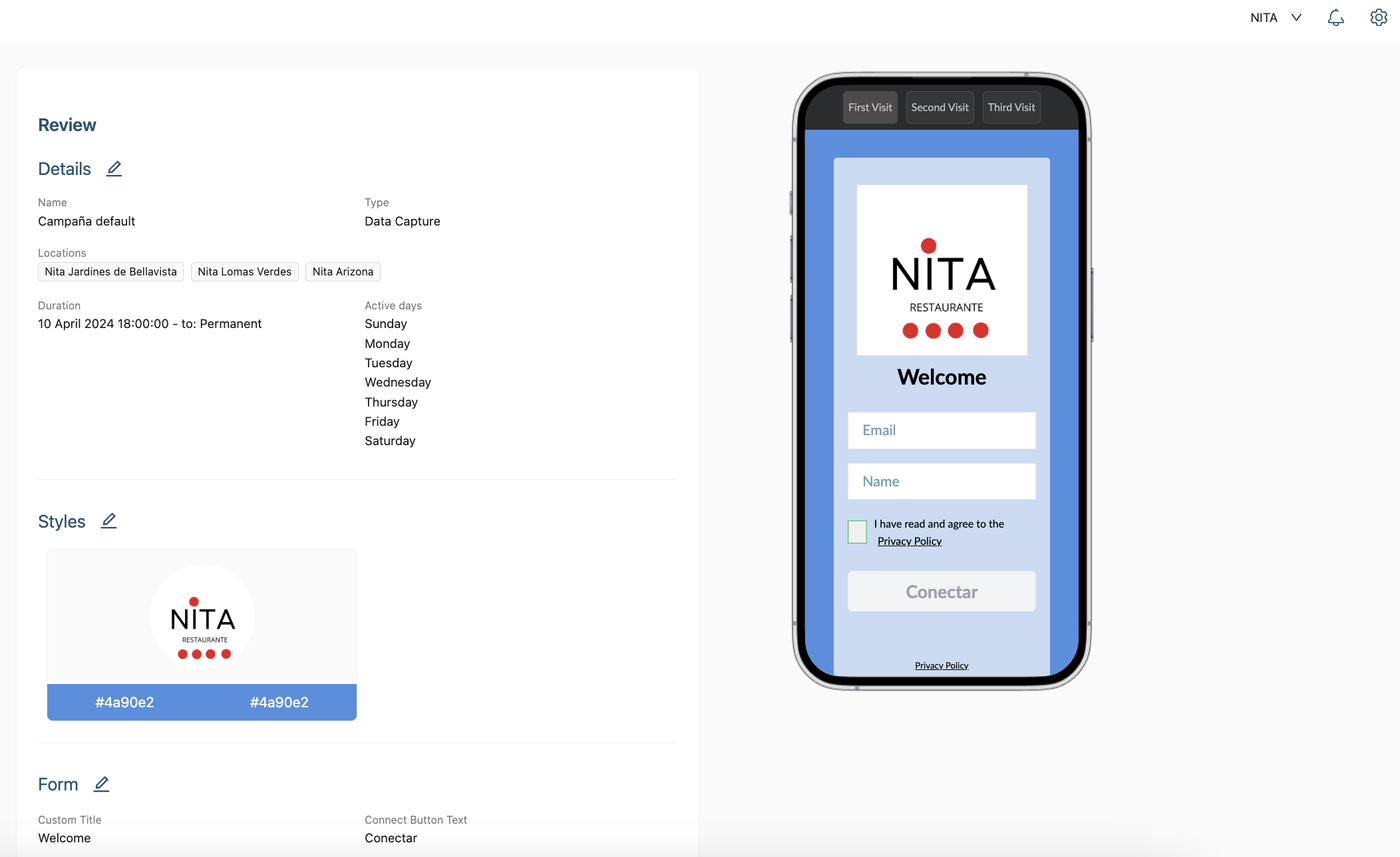

Update your Default Campaign
Unleash the full potential of your Aiwifi Portal with your Default Data Capture Campaign.
Your brand’s crucial first impression!
This is the campaign every guest sees the first time they connect to your Wi-Fi Network, making it your most valuable tool for building connections and capturing vital customer data. Optimize it to be an irresistible, attention-grabbing powerhouse.
The Default campaign is a Data Capture Campaign, it will always be active on your Aiwifi Portal and is very important to prioritize it with colors and eye-catching text to attract their attention and generate more responses and connections.
By dedicating a few moments to these personalization steps, you’re not just setting up a campaign, you’re crafting a high-converting guest experience that fuels your growth and deepens customer engagement.
Steps to personalize your Data Capture Campaign
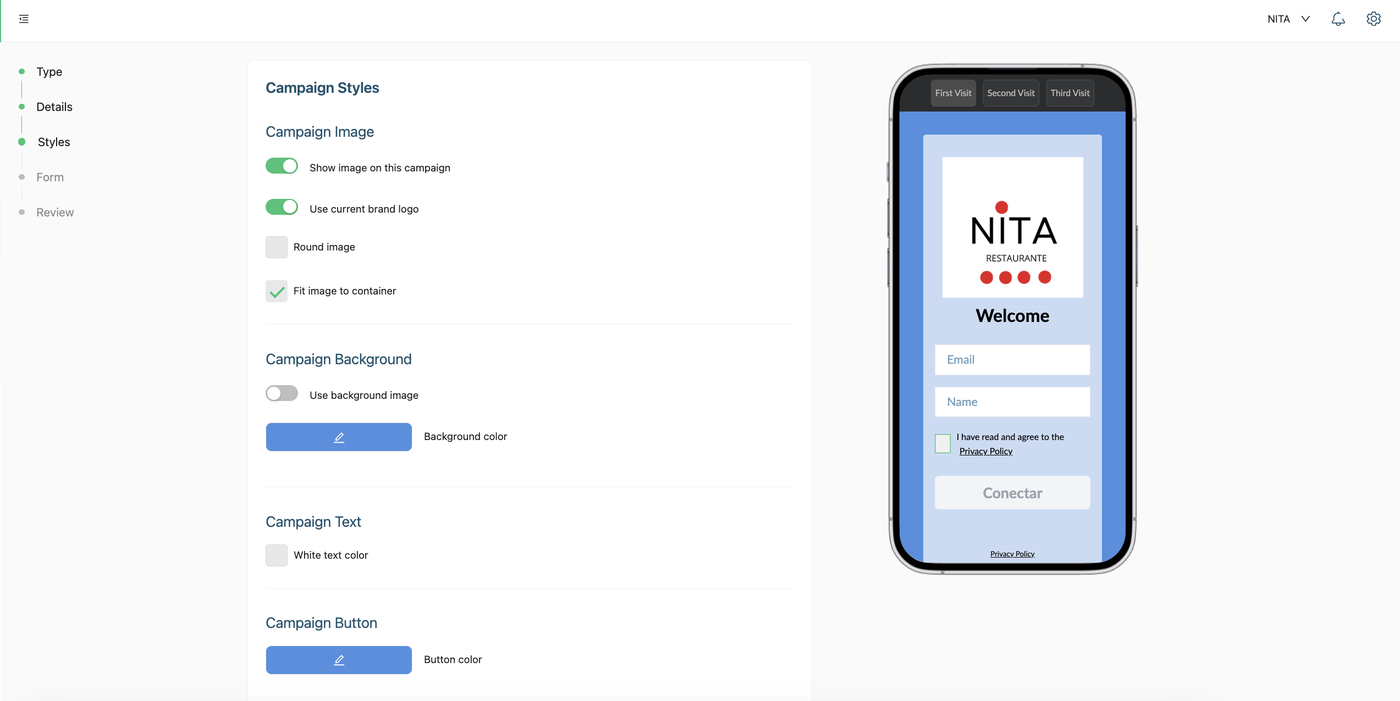
1) Campaign Styles:
Show image in this campaign.- You can activate or disable the button a side as your desire.
Use current brand logo.- You can activate or disable the button a side.
Round Image.- You can activate or disable the button a side.
Fit image to container.- You can activate or disable the button a side as you prefer.
Campaign Background.- If you want to use a background image you can drag your file or you can click on "Select from media" if you have images or gifs already in your "Media Section".
Campaign Text and Campaign Button
Campaign Text Color.- Select white or black for maximum contrast against your background.
Campaign Button.- You can select here the button color.
Font.- Typography defines your brand’s personality. You can choose between: lato, Covik sans, Work sans and Roboto.
Messaging that Converts
The right text and button are the keys to unlocking more connections.
Campaign Text Color: Select white or black for maximum contrast against your background.
Campaign Button Color: This is your call-to-action! Choose an eye catching button color that pops and encourages the click.
Font Flair: Typography defines your brand’s personality. choose a font that resonates with your style:
Lato (Classic & Approachable)
Covik Sans (Modern & Bold)
Work Sans (Clean & Professional)
Roboto (Versatile & Universal)
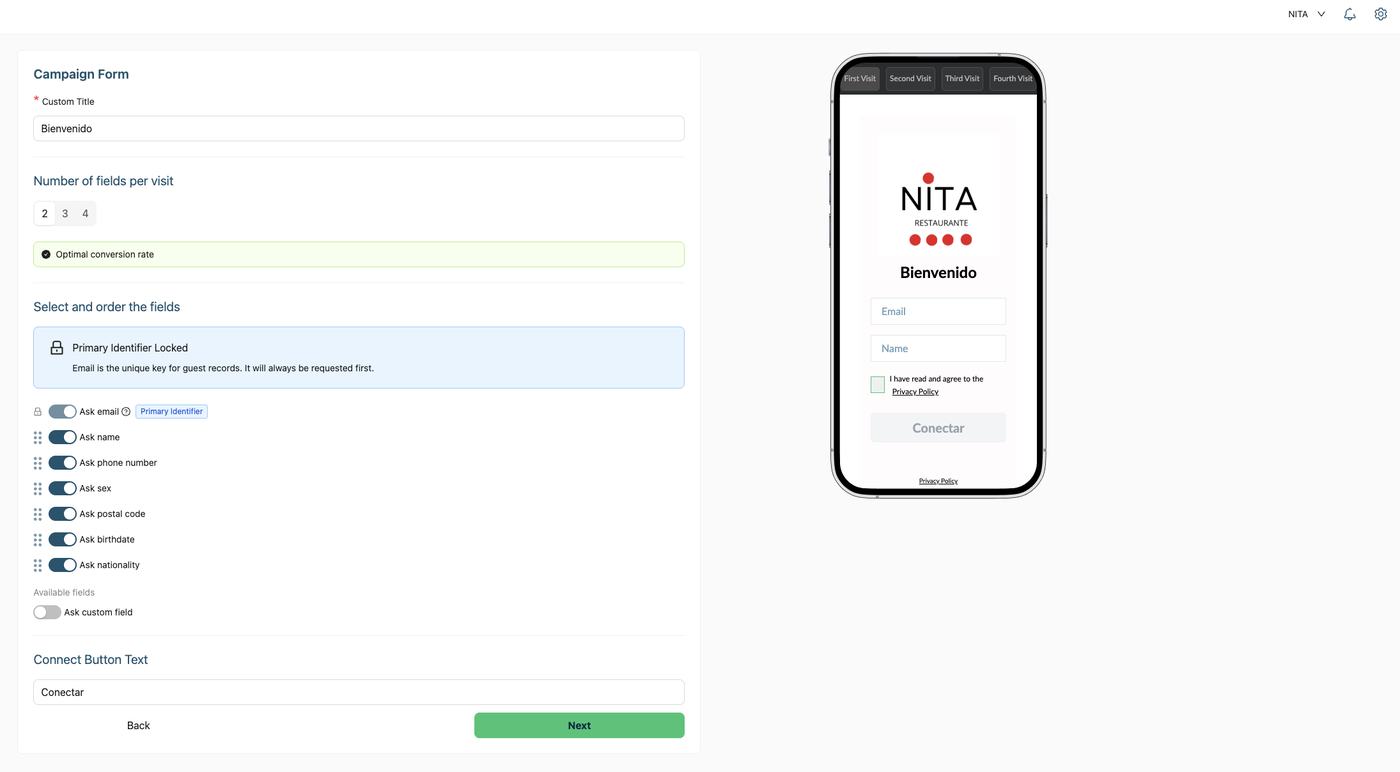
2) Personalize your Campaign Form
Ensure your message is crystal clear:
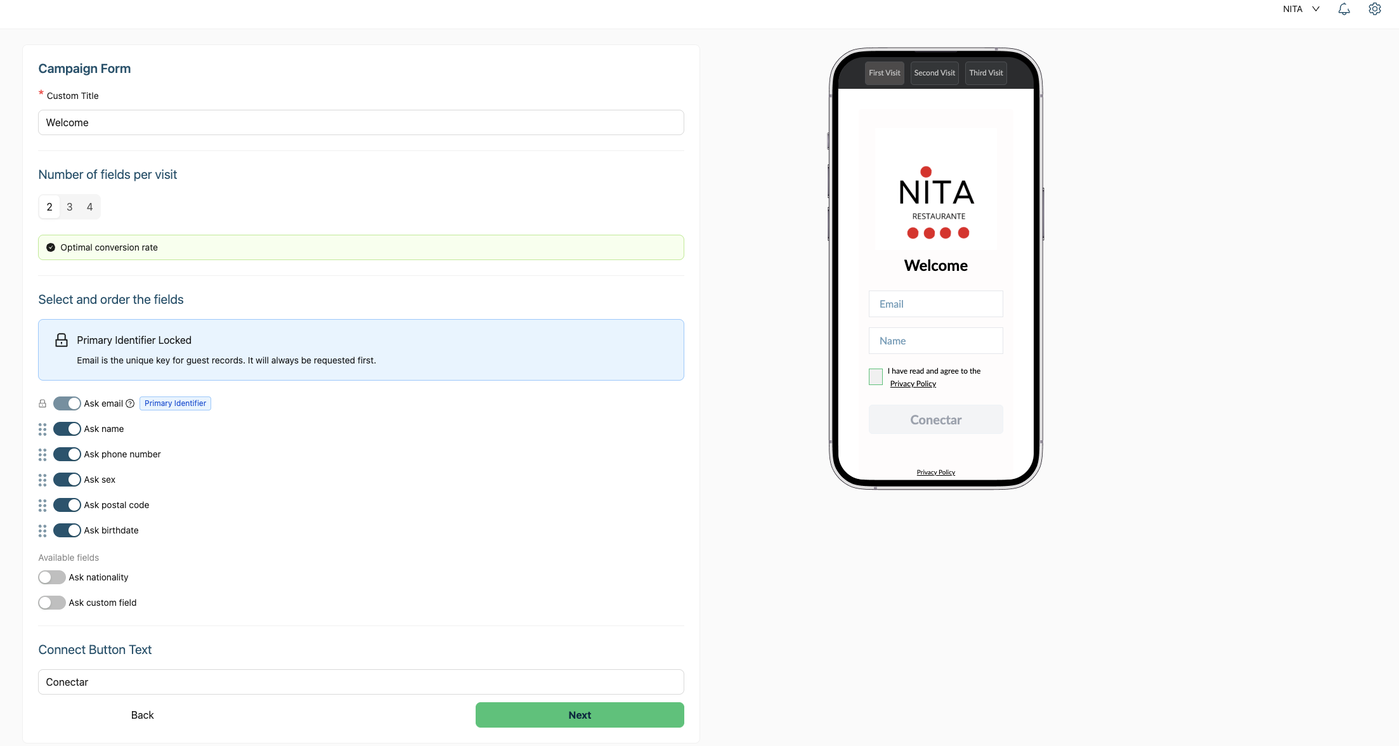
In the Form Section you can choose all the information to be captured.
The Data Capture campaign is a 'progressive' campaign - meaning it is a multi-visit campaign.
In order to ask for more than 2 fields we will show the guest only two fields at a time, which means the user will answer the fields on multiple visits/connections to the captive portal.
Now you can choose the number of fields you want to display on each visit. You can easily enable, disable, or reorder the fields as you prefer. The Email field is the only fixed field that always appears on the first visit, as it serves as the primary identifier and unique key for guest records.
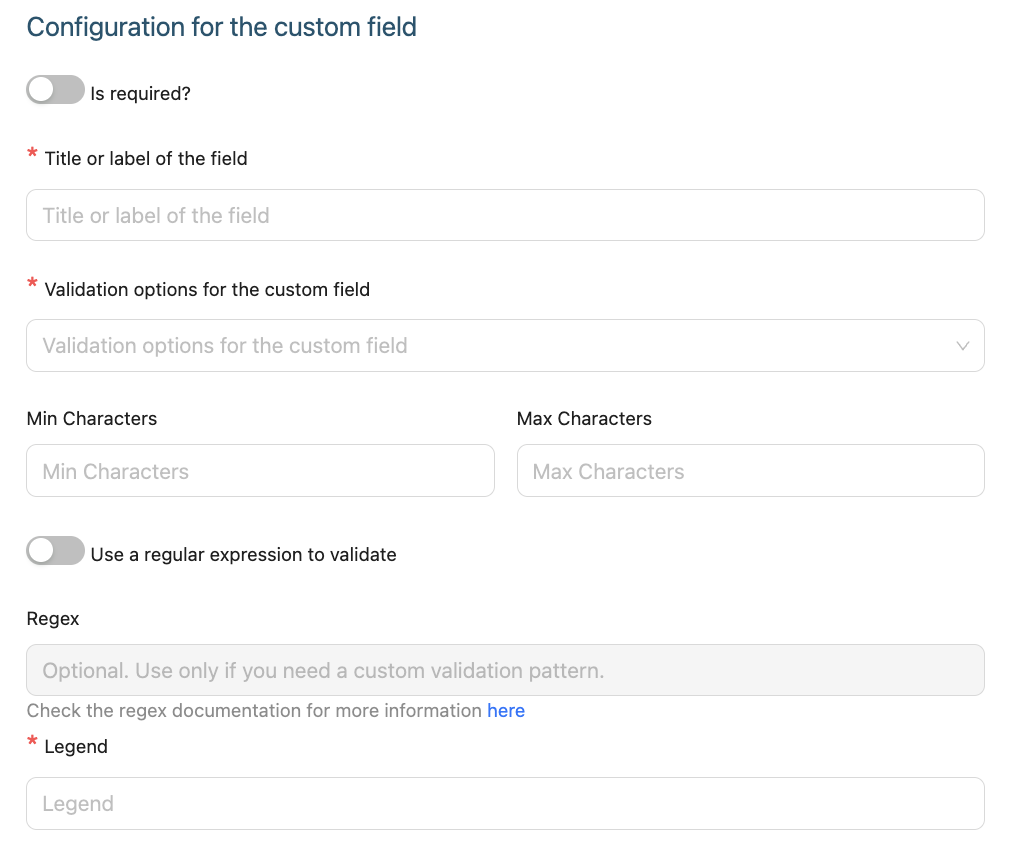
If you want to add an extra field, follow the steps bellow:
1.- Press the left button of the Ask custom field.
2.- You can able or disable the left button of the mandatory field label “is required”.
3.- Write the Title or label of the field. For example if you want to ask your guest for his passport ID you can write Passport ID .
4.- Validation options for the custom field.- Select one of the options deployed:
Any Character
Number and letters
Only Letters
Only Numbers
5.- Min and Max Characters.- Select the minimum and maximum characters. (0, 1 ,etc.)
6.- Use a regular expression to validate.- You can able or disable the left button of the label. If you able the button you have to write the Regex.
7.- Regex.- Optional. Use only if you need a custom validation pattern. Check the regex documentation for more information. Click on “here”.
8.- Legend.- Write the title of the legend, e.g. ID, Passport.
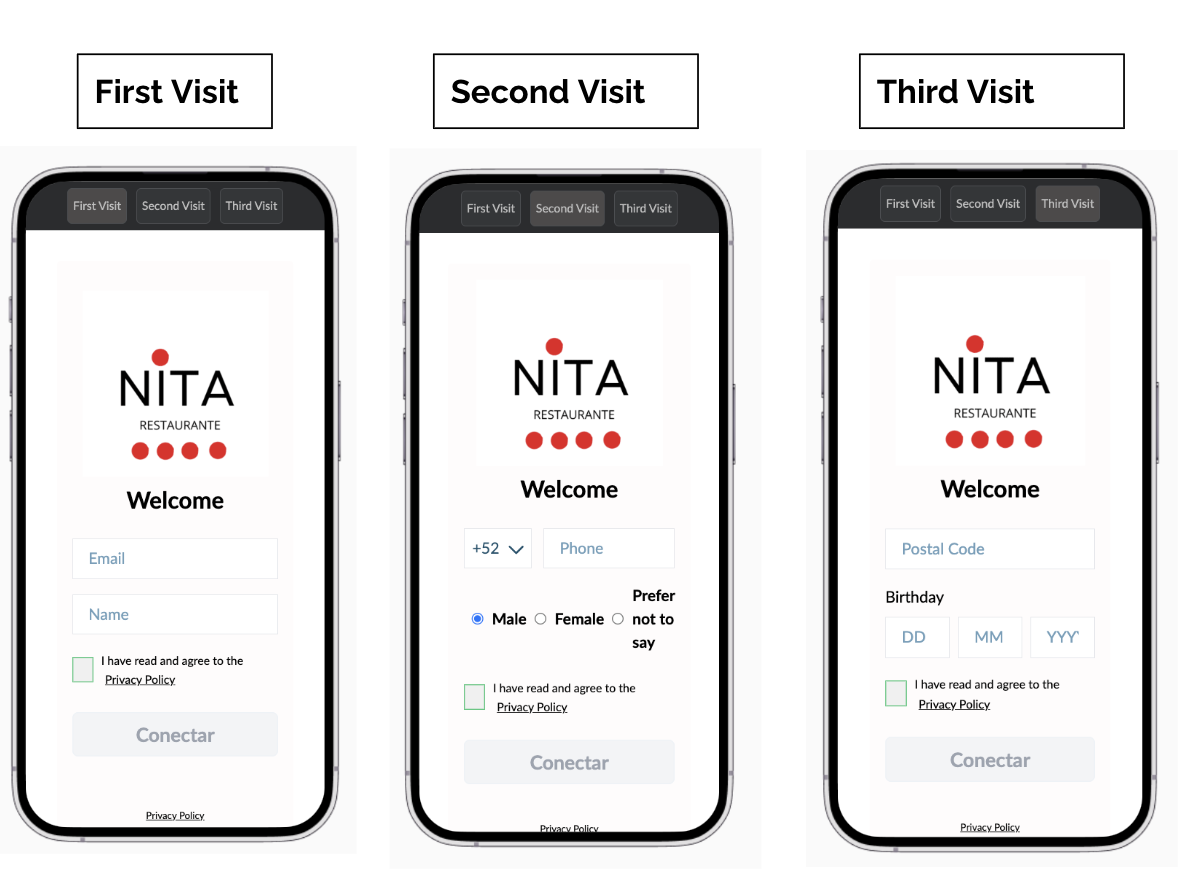
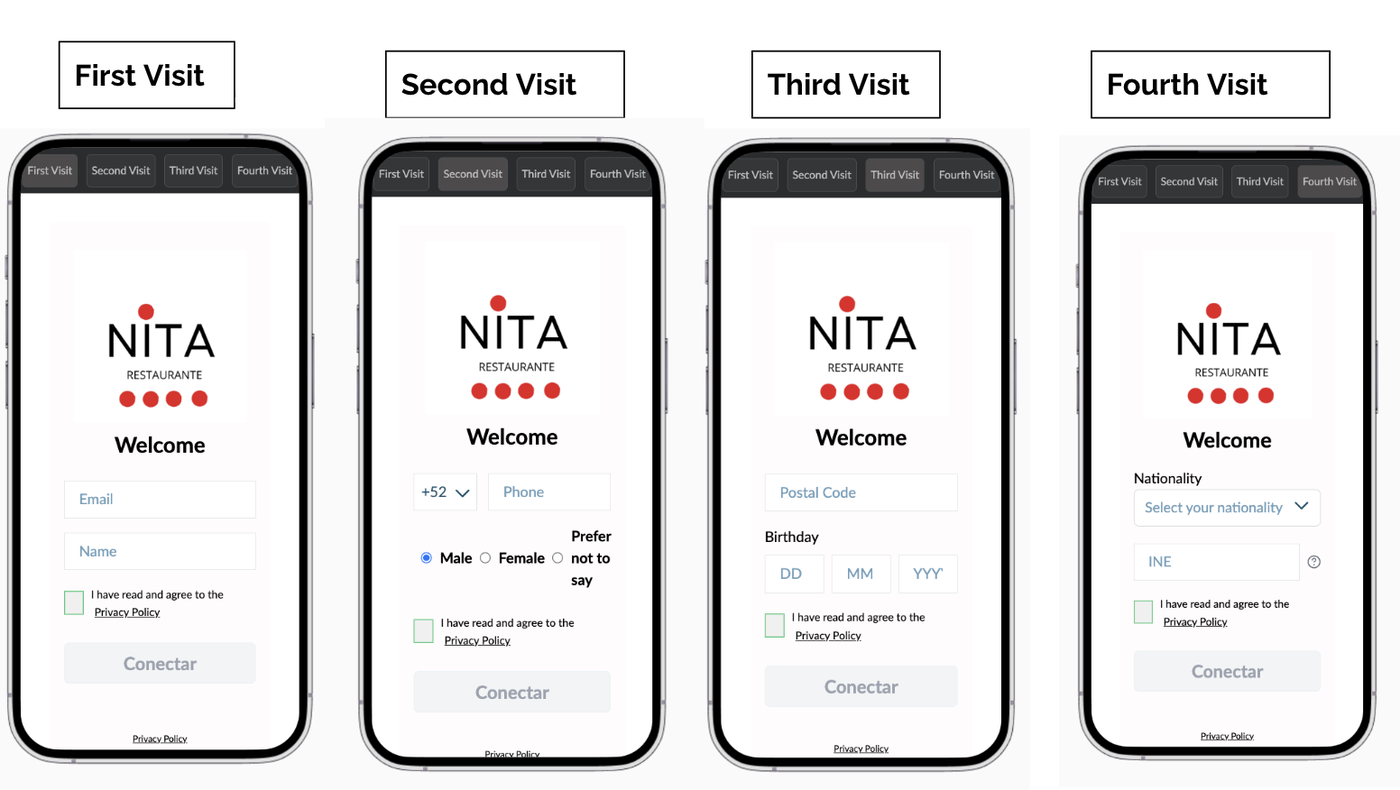
Here are a few examples of how multiple visits and connections work in your Data Capture Campaign, depending on the number of fields you choose to show your guests.
Displaying more than three fields automatically increases the number of visits to your data capture campaign. Plus, if you ever want to disable a field, the update happens instantly.
Example of a Data Capture Campaign with 3 visits and 7 active fields:
Here is an example of a Data Capture Campaign with 4 visits and 8 active fields:
Once you have selected the number and order of the fields, click on “Next”.
3) Confirm your Details and Styles of your Default Campaign
In this section you will find a summary of your campaign fields. If you want to make any change, click on the "return button", if you don't want to make any modification then click on "save campaigns".