
Create a Survey Campaign
The Survey Campaign: Uncover your guests’ Truth
The Survey Campaign is designed to capture valuable, timely insights directly from yopur guests about your products or services.
Aiwifi gives you the tools to ask exactly what you need to know.
Get Started: campaign Essentials
Aiwifi provides you with a list of questions such as: text, multiple choice, single choice, rating, matrix and NPS (Net Promoter Score) in order to collect the necessary information from your guests to improve their experience with your brand.
Steps to create your Survey Campaign
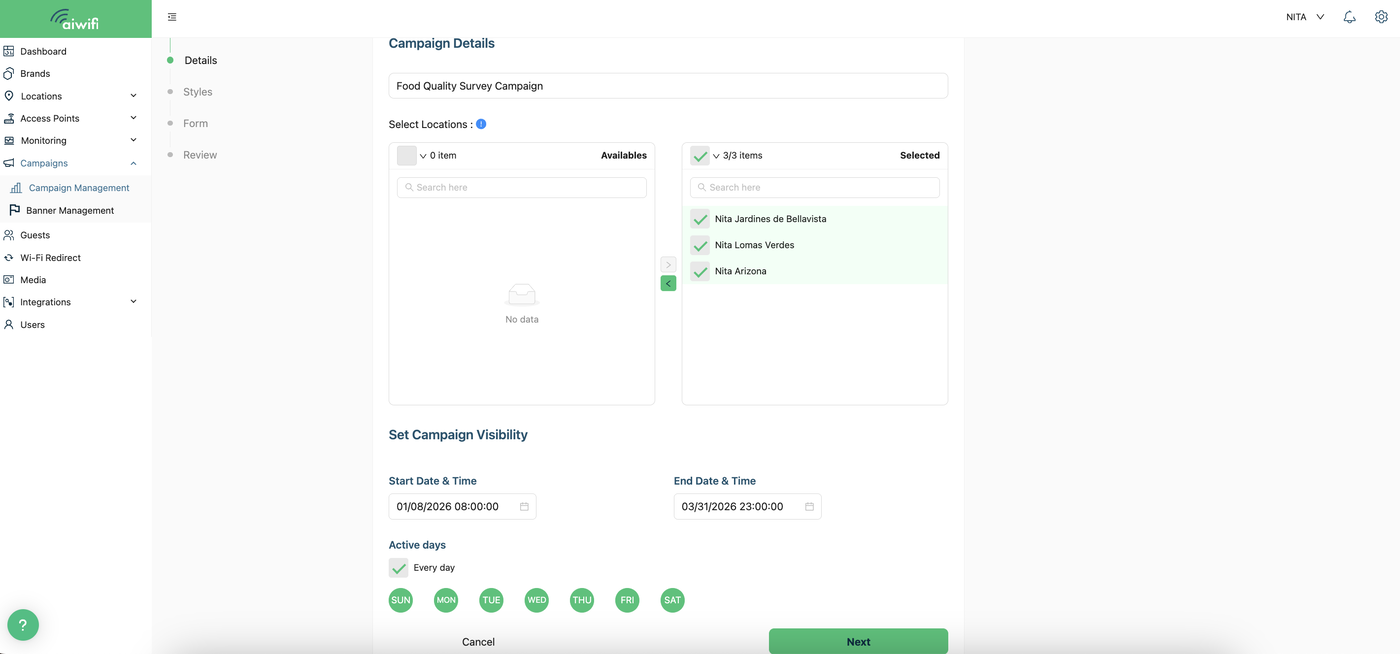
1) Customize your Campaign Details
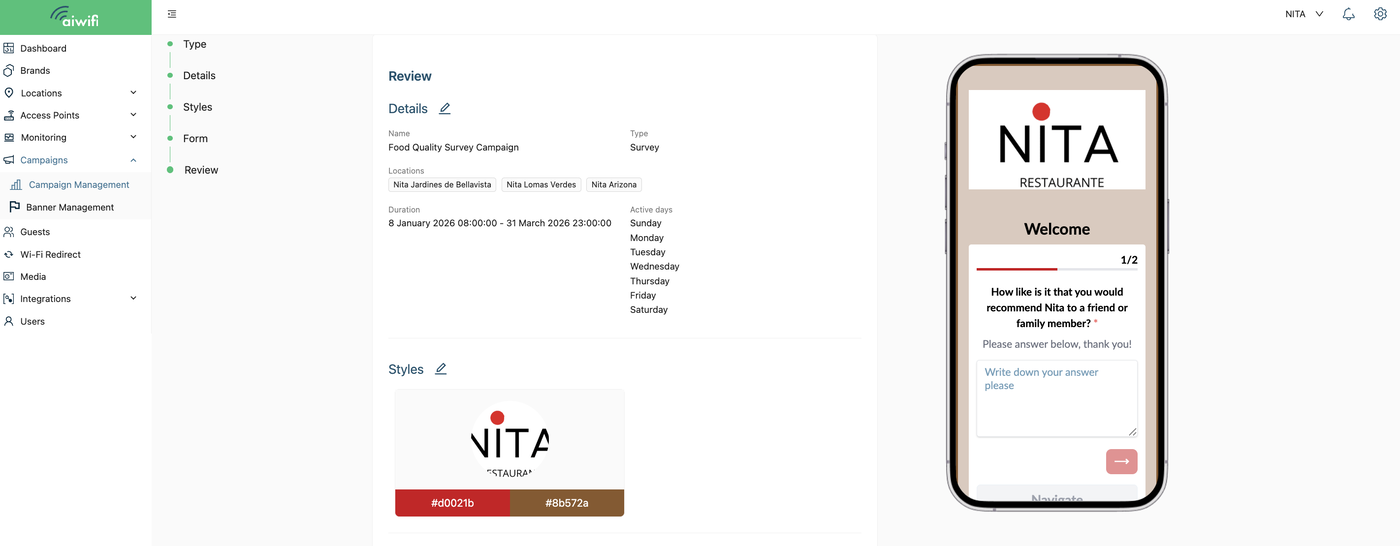
Campaign Name.- Fill out the internal campaign name for easy reference.
Select locations: Specify the locations where this campaign should be active.
Range Date and Time: Define the precise Range Date and Time for your survey to run.
2) Customize your Campaign Styles
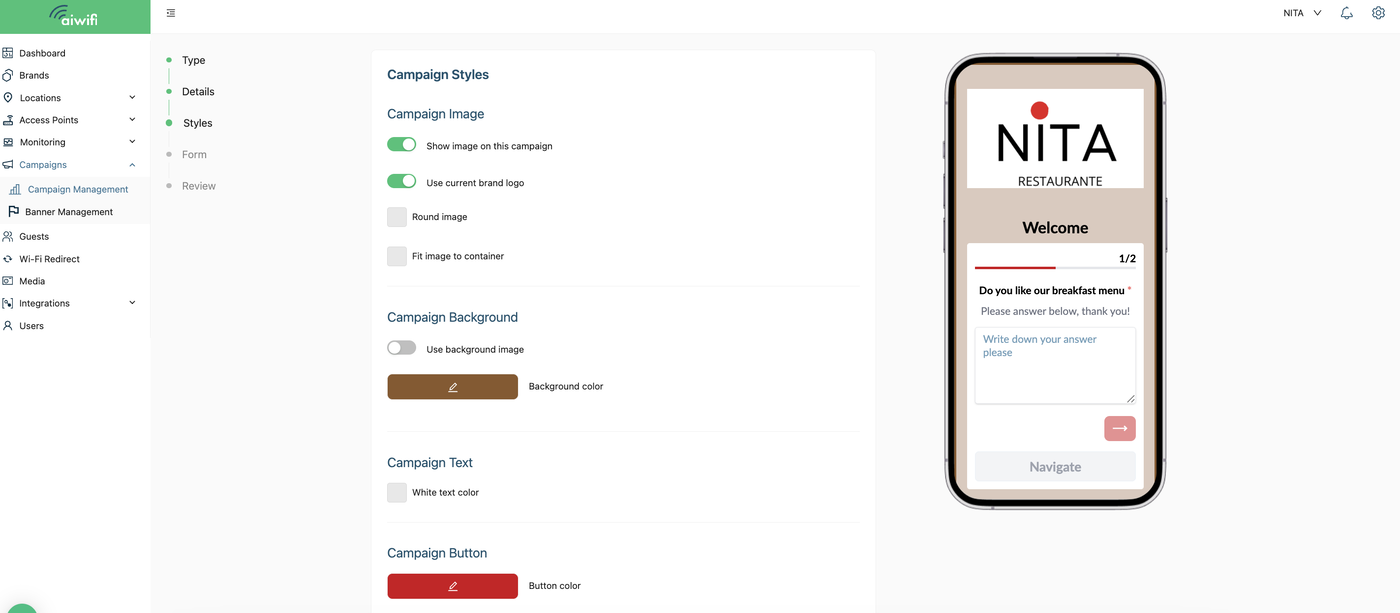
Style your Survey: Aesthetics & Flow.- In this section you can customize the details like:
Show image in this campaign.- You can activate or disable the button a side as you desire.
Use current brand logo.- You can activate or disable the button a side.
Round image.- You can activate or disable the button a side.
Fit image to container.- You can activate or disable the button a side as you prefer.
Campaign Background.- If you want to use a background image you can drag your file or you can click on "Select from media" if you have images or gifs in your "Media Section".
Campaign Text.- Here you can choose if you want white text color or black text color.
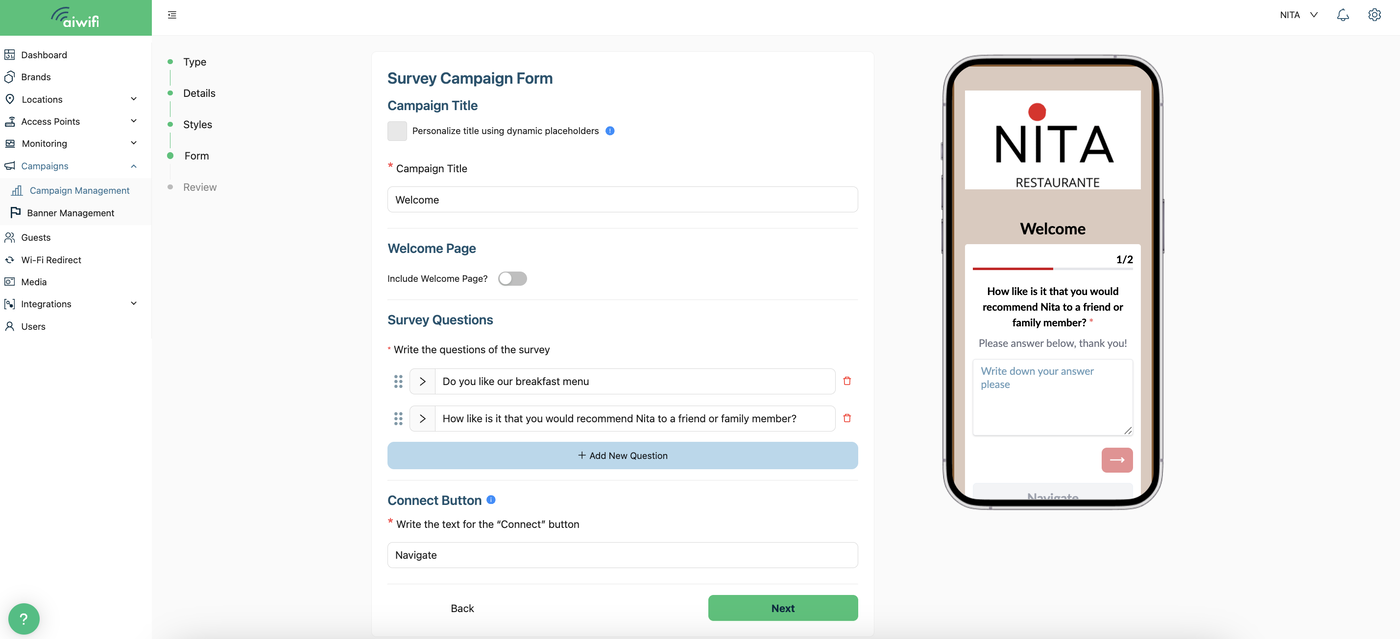
3) Customize your Campaign Form:
In this section you can customize de Campaign Form.
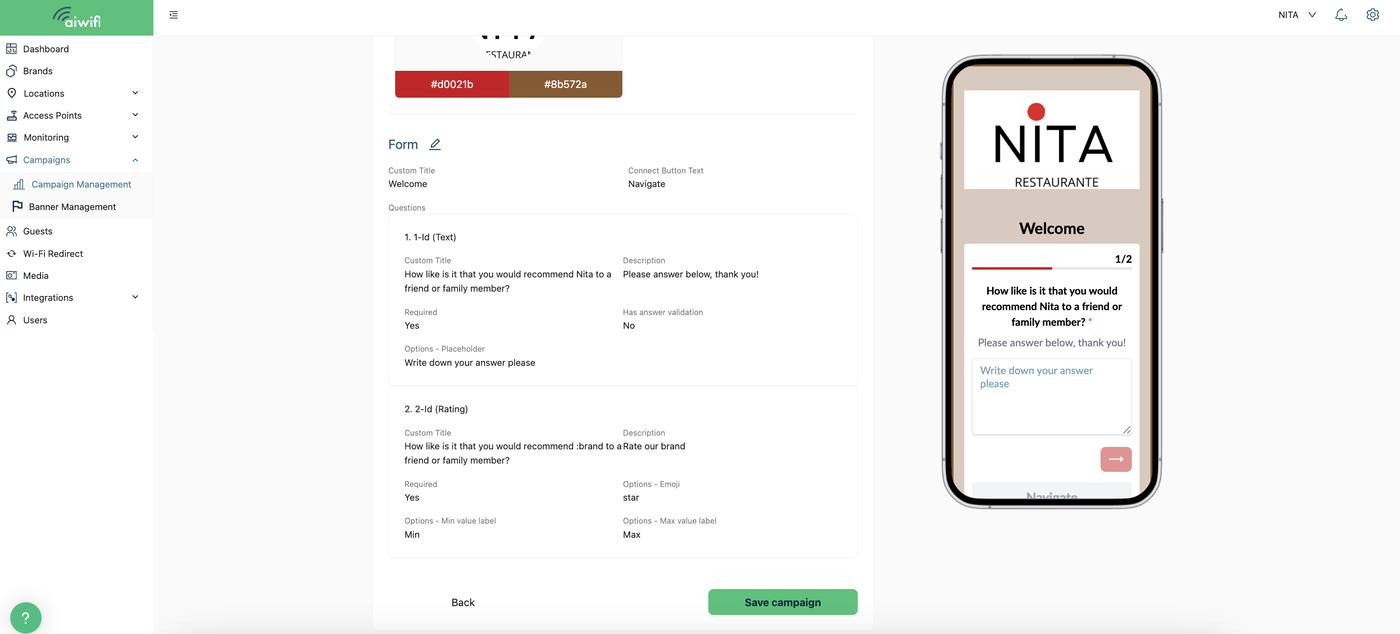
Main Title.- Is the name title of the survey.
Connect button text.- You can use the words Start or lets begin for example.
Has welcome page.- You can activate or disable the welcome page.
The welcome page has a button to disable it; if you do so, the “type” of questions is displayed.
Customize your questions (Title, Description and Choices).- Here you fill out the questions, descriptions and also you can choose the type of question you want for your guests to answer.
4) Confirm your Styles and Details Survey Campaign
If you agree with everything and don’t want to go back you can click on "Save the campaign".