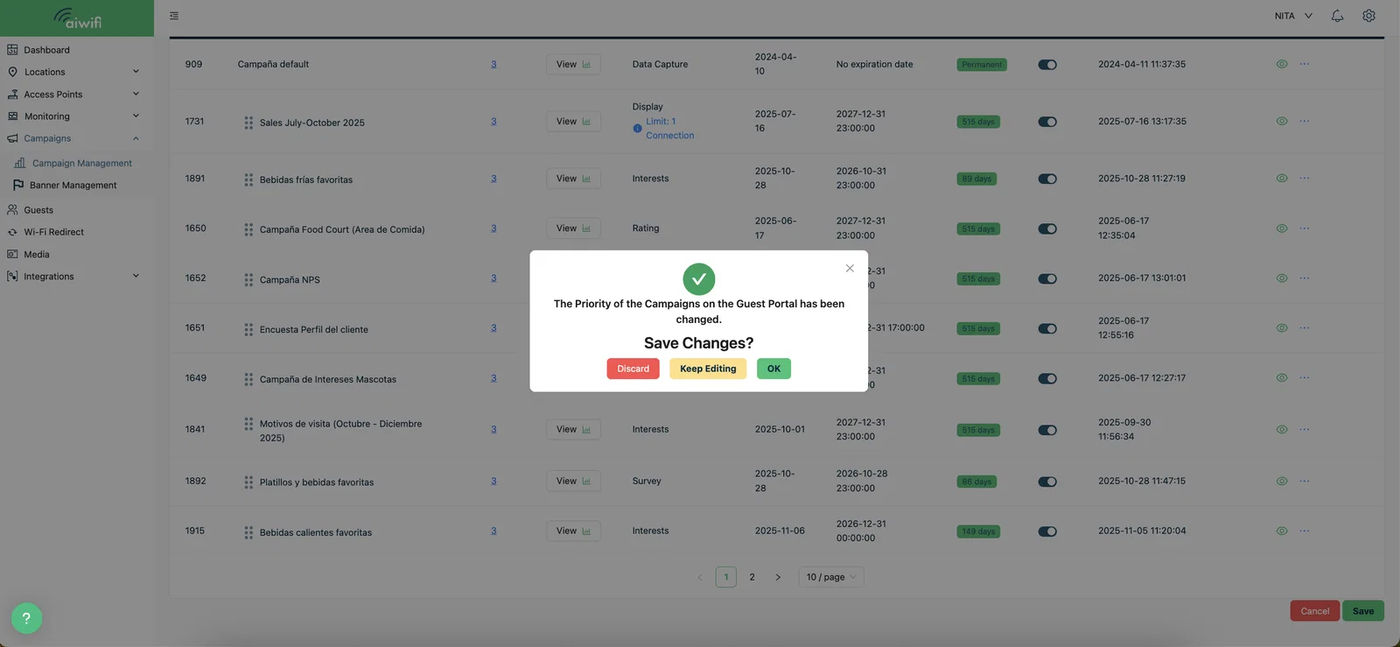

Campaign Priority View
You can change the priority View of your campaigns. Remember the campaigns appearing higher on the Priority View will have higher priority on the guest portal.
Below, we show you the different categories and the actions you can perform in this section by clicking the box to activate this feature, you can change the position or priority of your created campaigns, with the exception of the Data Capture campaign, which cannot be moved. To move a created campaign (Display, Interests, Survey, Rating, or NPS), follow these steps:
Steps to change the Campaign Priority View:
1.-Activate the “Campaign Priority View” feature on your Campaign Managment Dashboard.
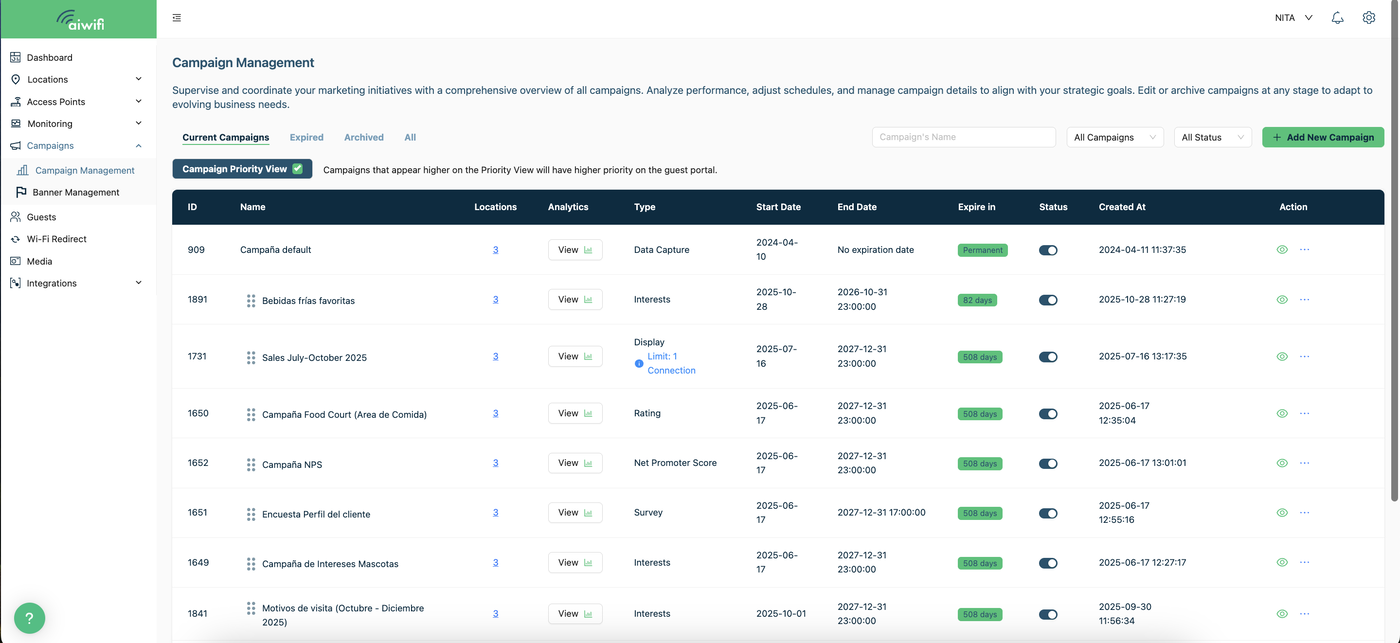
Click on the button on the right side to activate the feature.

2) Drag the campaign to the place desired.
Drag the campaign you wish to move up or down and place it in your desired location by clicking and holding the six-dot icon located to the left of the campaign title.

3) Click on “Save”.
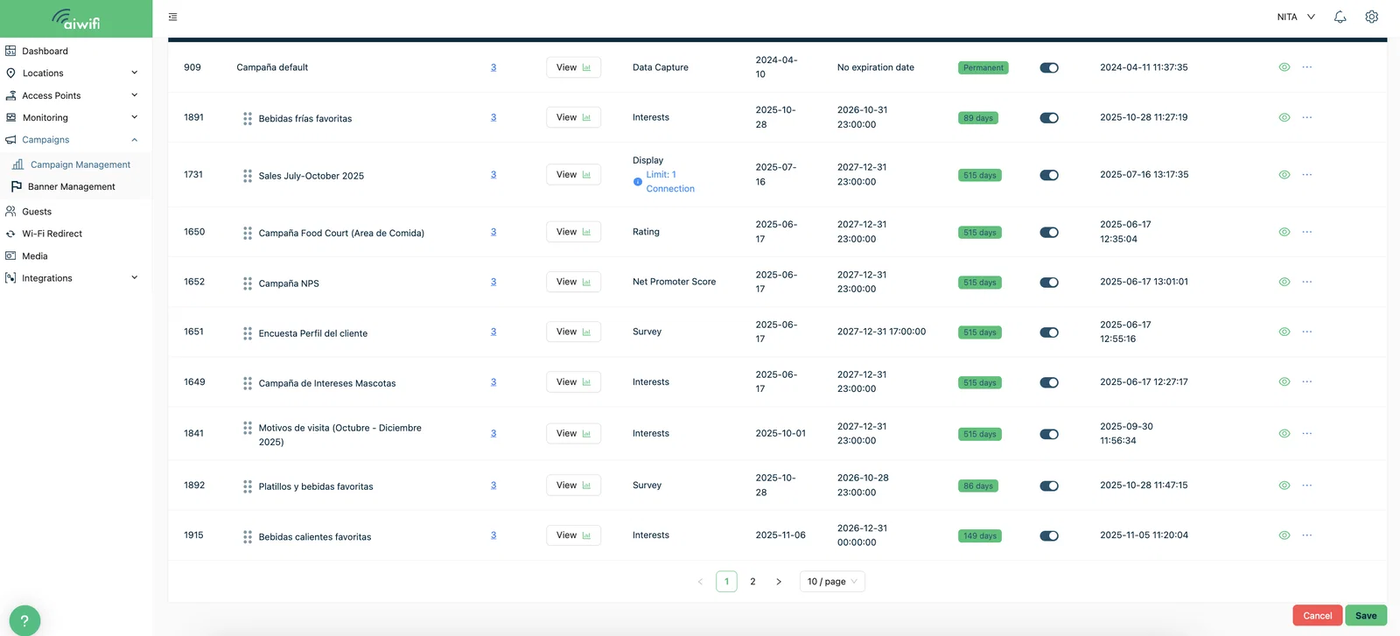
4) On your screen it will deploy the message “Save changes”, click on ok to save changes.